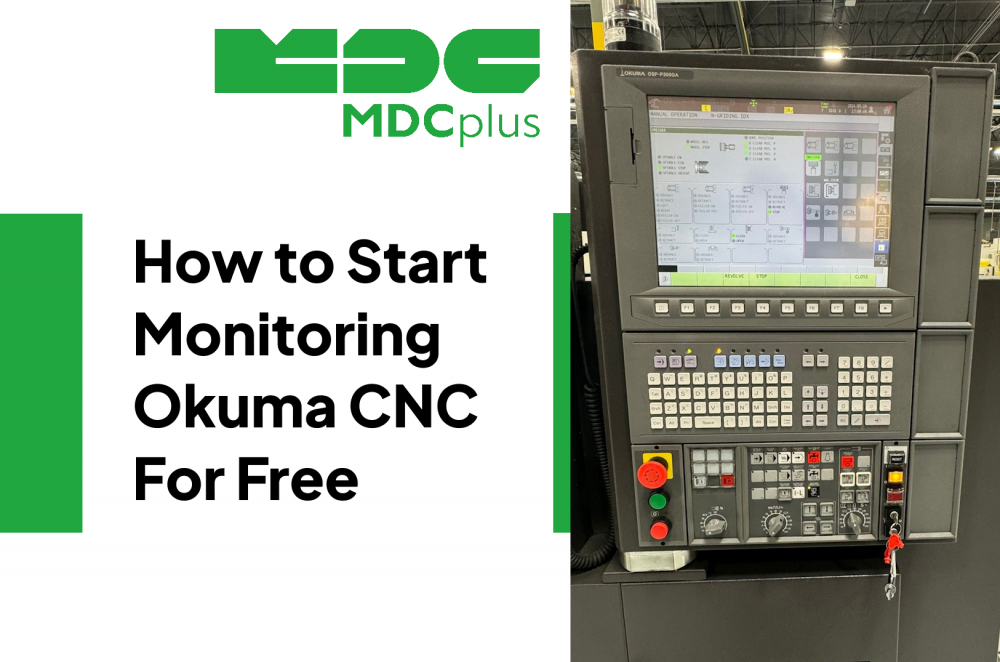
How to Start Monitoring Okuma CNC for Free (2026)
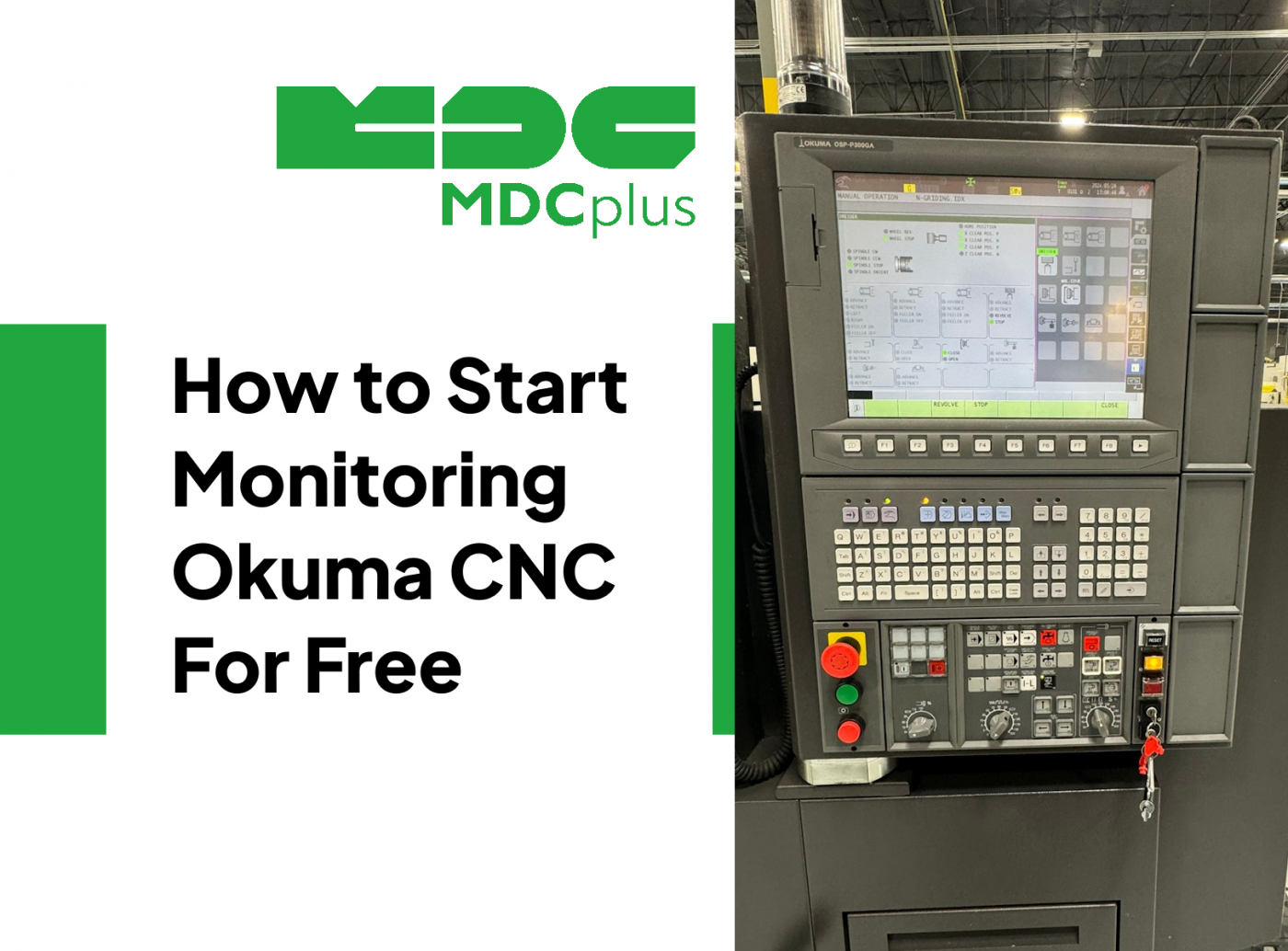
Okuma machines running OSP-P300S, OSP-P500S, and OSP-P300L controls support MTConnect via a free adapter available from Okuma's developer portal. This guide covers the full setup - from downloading the adapter to seeing live OEE data - at no cost.
For the full cross-brand monitoring guide, see CNC Machine Monitoring: Complete Guide for All Brands →
Okuma OSP controls and MTConnect support
| Control | MTConnect support | Notes |
|---|---|---|
| OSP-P300S / OSP-P300L | Yes - free adapter | Download from Okuma Developer Portal |
| OSP-P500S / OSP-P500L | Yes - native + free adapter | Most capable Okuma control for monitoring |
| OSP-P200S / OSP-P200L | Partial - older API | Modbus gateway recommended |
| OSP-U10 / U100 (legacy) | No | Serial/Modbus adapter required |
Step-by-step: MTConnect setup on Okuma OSP
Step 1 - download the Okuma MTConnect adapter
Okuma provides a free MTConnect adapter through the Okuma App Store (apps.okuma.com). Log in with your Okuma account (free registration) and search for "MTConnect Agent." Download the installer for your OSP version (P300 or P500).
The adapter runs on the OSP controller's built-in Windows PC - no separate hardware required.
Step 2 - install and configure the adapter
- Copy the installer to the OSP PC via USB or network share
- Run the installer - it installs as a Windows service
- Open the configuration file at
C:\Okuma\MTConnect\adapter.cfg - Set the
portto 7878 (MTConnect adapter default) - Set the
device_nameto identify your machine (e.g., "Okuma-VTM200") - Start the service: Windows Services → "Okuma MTConnect Adapter" → Start
Step 3 - deploy the MTConnect agent
The adapter produces raw data. An MTConnect agent (separate software) formats it into the standard MTConnect XML stream that monitoring platforms consume. Download the free MTConnect C++ Agent from github.com/mtconnect/cppagent, or use the agent built into MDCPlus.
If using MDCPlus: add a new machine, select "Okuma MTConnect," enter the OSP PC's IP address and port 7878. MDCPlus handles the agent layer internally.
Step 4 - verify data
Open a browser and navigate to http://[OSP-PC-IP]:5000/current (standard MTConnect agent port). You should see an XML document with the machine's current state, program name, and spindle data. If the XML returns valid data, your monitoring system connection will work.
What data Okuma MTConnect provides
Standard Okuma MTConnect implementation exposes: execution state (Active/Interrupted/Ready/Stopped), program name, spindle speed, feedrate override, axis positions, and active alarms. Part count is available on OSP-P500 and requires a specific configuration in the adapter config file - see the Okuma developer documentation for the part_count_register parameter.
For alarm code reference: Okuma OSP alarm codes →
Related resources:
- CNC Machine Monitoring: Complete Guide for All Brands
- Okuma OSP alarm codes - complete reference
- How to start monitoring Fanuc CNC for free
- OEE benchmarks by industry
- Downtime Pareto analysis - free template
About MDCplus
Our key features are real-time machine monitoring for swift issue resolution, power consumption tracking to promote sustainability, computerized maintenance management to reduce downtime, and vibration diagnostics for predictive maintenance. MDCplus's solutions are tailored for diverse industries, including aerospace, automotive, precision machining, and heavy industry. By delivering actionable insights and fostering seamless integration, we empower manufacturers to boost Overall Equipment Effectiveness (OEE), reduce operational costs, and achieve sustainable growth along with future planning.
Ready to increase your OEE, get clearer vision of your shop floor, and predict sustainably?